Lensa: photo editor & AI art
- 4.1
- Rating
- 10.00M
- Installs
- Free
- Price

 Analysis by App-foxy
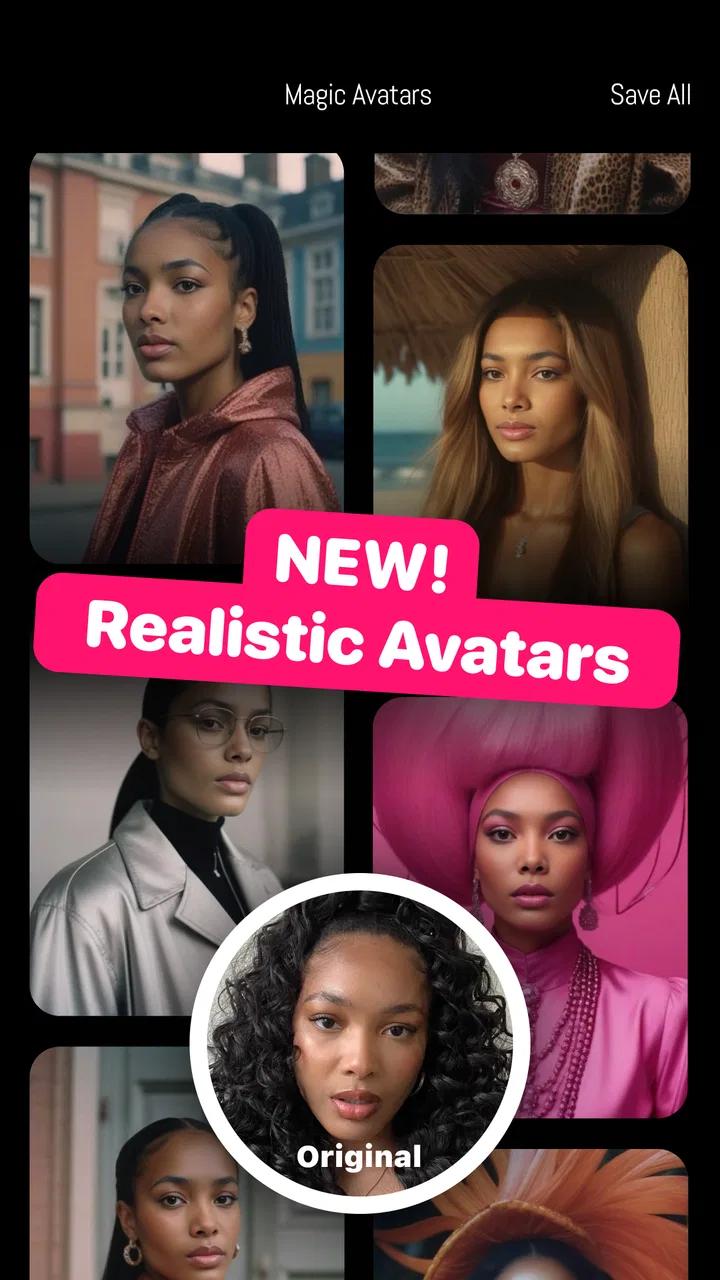
I found Lensa most useful when I treated it as a quick creative photo studio rather than a complete replacement for every editing tool on my phone. It sits in the photography category and combines portrait editing, picture adjustments, an AI photo enhancer, avatar creation, and a selfie camera in one app. That mix makes it appealing if you want a noticeable change without learning a complicated desktop editor.
My first impression was that the app is aimed at people who want results quickly. I could begin with a selfie, choose a portrait-oriented treatment, and move toward a more polished image without building the edit from scratch. At the same time, the range of AI-focused tools means the experience is not always as predictable as a traditional brightness, crop, or color editor. Some results feel flattering and imaginative, while others can move farther from the original person or mood than I intended.
Prisma Labs, Inc. develops the app, which is free to install for Everyone. It has passed the ten-million-install mark and holds a 4.1 average from roughly 196 thousand ratings, so there is a substantial user base behind it. The app was released on October 2, 2019, and the current version is 6.3.7+882 for devices running operating system version 10 or newer.
You May Also Like

 Blood Strike: 2.5 Anniversary
Blood Strike’s Loadouts Turn Every Drop Into a Tactical Gamble
A close look at Blood Strike’s custom loadouts: how fast access to signature weapons reshapes its battle royale rhythm, rewards preparation, and narrows the gap between fights.

 Pandora - Music & Podcasts
Pandora’s Music Is Easy to Start, but Harder to Recover
Pandora’s strength is its low-effort path from a seed to a station. Its weak spot is how much confidence it asks you to place in connection, setup, and quiet recovery.

 8 Ball Pool
 Is Built on Rivalries, Rematches, and Routine
A close look at the rivalries, rematches, shared routines, and unanswered safety questions that turn a quick pool match into a persistent mobile community.

 Samsung Music
’s Quiet Strength Is Playing What You Already Own
Its reach comes less from spectacle than from dependable access to a personal library. That simplicity is both the app’s strongest retention engine and its ceiling.

 AccuWeather: Weather Radar
AccuWeather Review: A Quick, Clear Forecast for Everyday Decisions
For everyday plans, the best forecast is the one you can understand quickly. AccuWeather makes rain timing, radar, and local conditions easy to act on, with a few trade-offs.

 Hill Climb Racing
Why Hill Climb Racing Still Turns Crashes Into One More Run
A tiny car, a bumpy hill and one more upgrade: Hill Climb Racing keeps resurfacing because its simple chaos makes every near-miss feel personal.
More From Our News Desk



Getting from the first launch to a useful photo
I approach the first session as a small test, not a commitment to edit my whole photo library: I choose one clear portrait, keep its original, and see whether a subtle change improves it. That gives me a useful baseline for judging Lensa’s more creative options, while keeping the next decision grounded in what I actually want from the picture.
What to expect before you start editing
The best way to approach Lensa is to decide what kind of result you want before opening a photo. If I want a natural-looking profile image, I start with a clear portrait and keep the changes restrained. If I want something more expressive for a social post, I am more willing to try stylized treatments or avatar-oriented tools. That small decision prevents the common mistake of applying every effect simply because it is available.
The app is particularly comfortable with portraits and selfies. A face that is reasonably well lit and not hidden by a busy foreground gives the editing tools more to work with. I would not expect an AI editor to rescue every blurry, dark, or awkwardly framed photograph. Starting with a decent original is still the fastest route to a convincing result.
One useful distinction is between improving a picture and reinventing it. Enhancement tools are suitable when I want the same photo to look cleaner or more finished. Avatar and artistic options are better when I accept that the final image may no longer look like a straightforward camera capture. Knowing which side of that line I want makes the app feel much less confusing.
First setup and choosing the right starting image
After installing it, I would begin with a small test rather than immediately processing the most important photo in my library. A casual selfie or a duplicate of a favorite image is ideal. This lets me see how the app handles my face, hair, skin texture, glasses, and background without creating pressure to get the first attempt perfect.
For a professional-looking portrait, I look for even light, a simple background, and a face that is large enough in the frame. For an avatar, I might deliberately choose several different expressions or angles and compare the results. The more varied the source images, the easier it is to recognize whether a result is consistently useful or merely lucky.
I also recommend keeping the original untouched. My preferred workflow is to edit a copy, compare it with the camera version, and only then decide whether the stronger treatment is actually better. AI editing can make skin appear unusually smooth or alter small facial details. Seeing both versions side by side helps me avoid confusing “different” with “improved.”
The first successful action: make one controlled portrait edit
For a first meaningful result, I would choose one portrait and make a single clear change. Rather than exploring every creative option, I would begin with the photo-enhancement side of the app and judge whether the face remains believable. If the image already has good lighting, a light touch can be more effective than an aggressive transformation.
My practical test is simple: I zoom in on the eyes, hairline, and edges of the face, then view the picture again at normal size. At close range, I can spot strange smoothing or details that do not match the original. At normal size, I can decide whether the overall portrait works as a profile picture, message attachment, or social post. Both views matter because an edit that looks impressive in a thumbnail may feel artificial when someone sees it larger.
When I want a more imaginative result, I save the restrained version first and then experiment with an avatar or artistic treatment. That order gives me a dependable image before I start exploring. It also makes the creative process more enjoyable because I am not trying to recover a natural portrait after an extreme effect has changed the entire look.
A useful everyday scenario is preparing a profile image before joining a new group or community. I might take a quick selfie near a window, choose the cleanest frame, use Lensa to refine the portrait, and compare the result with the original before saving it. The app is helpful here because I can explore a polished version and a more expressive version without reaching for a complex editor. I would still choose the natural-looking result if people need to recognize me easily.
Why the selfie camera can be more useful than it first appears
The selfie camera is not only for taking another picture. It can be a practical way to test how I look under the conditions in which I normally take portraits. I can adjust my position, move toward better light, and remove distracting objects from behind me before committing to an edit. That preparation often improves the final result more than adding another effect afterward.
I find it helpful to take several simple frames instead of one carefully posed shot. A small change in expression or camera height can make the difference between a portrait that feels relaxed and one that feels forced. Once I have a few candidates, the editing stage becomes a selection problem rather than an attempt to repair a weak photograph.
This is also where the app differs from a basic camera editor. A conventional editor gives me direct control over individual adjustments, while Lensa encourages a faster portrait-centered workflow. That speed is its strength when I want a presentable image in a short session. It is less satisfying when I want to understand exactly which adjustment changed a particular part of the photograph.
Common confusion around AI results and paid choices
The biggest source of confusion for a first-time user is expecting AI output to behave like a precise manual command. When I ask for a stylized portrait or avatar, the app is interpreting the source rather than simply moving a slider. Two images of the same person can therefore produce noticeably different results, especially when the pose, lighting, or background changes.
I would not judge the whole app from one unsuccessful generation. Instead, I compare several source photos and look for a pattern. If the face remains recognizable and the style suits my purpose across more than one attempt, the feature is doing something useful for me. If the output repeatedly changes features that matter to my identity, I switch back to a lighter edit.
The app is free to download, but it includes in-app purchases ranging from $0.99 to $69.99 per item. I would pay attention to the purchase screen before confirming anything, especially if I am only testing the app. The sensible approach is to decide what I actually need first: a quick portrait adjustment, an occasional creative experiment, or repeated access to more advanced possibilities. Those are different use cases, and they do not deserve the same spending decision.
Another point worth remembering is that a visually dramatic result may not be appropriate everywhere. An avatar can be fun for a casual account, game profile, or private chat, but it may be a poor choice for work, school, identification, or any situation where an accurate likeness matters. I treat the creative output as artwork inspired by my photo, not as a trustworthy substitute for the original.
Three details that improve the workflow
First, I use a small set of source images instead of repeatedly forcing one poor photograph through different treatments. This is more efficient and gives me a fairer comparison. A clear three-quarter portrait may work better than a front-facing selfie, while a relaxed expression can produce a more natural avatar than a carefully exaggerated pose.
Second, I compare edits at two stages: immediately after processing and again after a short break. The first view is often influenced by the novelty of the effect. Later, I notice whether the skin is too smooth, whether the eyes look unnatural, or whether the background competes with the face. This pause is especially valuable when choosing a profile image that I expect to keep for a while.
Third, I create versions for specific purposes rather than searching for one perfect edit. A subtle portrait can serve a contact profile, a colorful avatar can work for a casual social account, and the untouched original remains useful for situations requiring accuracy. Separating those purposes prevents me from over-editing a photo simply because I want it to work in several places.
Where it beats ordinary editors, and where it does not
Compared with a standard phone gallery editor, Lensa feels faster when the subject is a person and the goal is a polished or imaginative portrait. I do not need to manually balance every adjustment before seeing a meaningful change. That makes it approachable for someone who wants a result rather than a lesson in photo correction.
Traditional editors still have the advantage when I need exact control. If I want to straighten a horizon, remove a very specific distraction, match colors across several images, or make a careful crop for a fixed layout, a conventional tool may be the better choice. Lensa’s portrait focus is not a weakness by itself, but it means I would not use it as my only photo editor.
It also differs from a simple filter app. A filter usually applies a recognizable visual treatment across the frame, while AI portrait work can change how the person and the surrounding image are interpreted. That can produce a more personal result, but it also introduces more variation. I prefer Lensa when I want creative assistance; I prefer direct controls when consistency and repeatability matter more.
Who should use it, and who should skip it
I would recommend trying it if you regularly take selfies, need occasional profile portraits, or enjoy turning ordinary photos into stylized images. It is a good fit for someone who wants an approachable path from camera capture to a shareable result. The free entry point also makes it easy to test the basic experience before deciding whether the extra options justify any purchase.
I would be more cautious if you dislike AI-generated changes to faces or expect every edit to preserve exact identity. People who need detailed retouching, precise color work, batch consistency, or advanced compositing may be happier with a dedicated manual editor. Likewise, if you only want simple cropping and rotation, this app may offer more creative machinery than you need.
Device compatibility is straightforward but important: the app requires operating system version 10 or newer. Before installing on an older phone or tablet, I would check the system version rather than assume that every device can run it. On a supported device, I would still leave enough storage and patience for processing, particularly when experimenting with several portrait variations in one session.
My next-step routine after the first success
Once I have one edit I genuinely like, I save it and write down what made the source work: the lighting, angle, expression, and distance from the camera. That small record helps me recreate the conditions later. I then try one different source image, not ten, and compare whether the same style remains flattering.
For regular use, I would build a simple three-part routine. I capture or select a clean original, make a restrained portrait version, and only then try a more adventurous avatar or artistic treatment. This keeps the app from becoming a button-pressing exercise and gives me a reliable fallback whenever the creative output misses the mark.
I would also decide in advance where the finished image will appear. A close friend may appreciate an exaggerated avatar, while a professional contact may need something recognizable and understated. The right result is not necessarily the most impressive one inside the editor; it is the one that fits the person, platform, and purpose.
After using it this way, I see Lensa as a focused photography app with a strong portrait personality. It makes the first polished result easier than a manual editor, and its creative tools can turn a routine selfie into something genuinely distinctive. The trade-off is less predictability, plus the need to watch paid options and judge whether an AI transformation still feels like you.
My recommendation is to start small, protect the original, and compare natural and artistic versions before sharing either. If that workflow matches what you want from a selfie camera and AI photo editor, Lensa is worth exploring. If your priority is exact control over every pixel, I would keep a traditional editor beside it rather than expecting one app to handle every photographic job.
FAQs for Lensa: photo editor & AI art
01What is Lensa: Photo Editor & AI Art used for?
Lensa is a photo-editing app designed for enhancing portraits, retouching selfies, applying artistic filters, and creating AI-generated avatars. During testing, its main appeal was the combination of quick automatic improvements and creative effects that require little editing experience. It can be used for everyday photos, social media posts, profile pictures, and more stylized AI artwork.
02Is Lensa free to download and use?
Lensa can generally be downloaded for free, but many of its advanced editing tools, premium effects, and AI avatar features may require a subscription or separate purchase. Before starting a trial, check the current pricing, renewal terms, and which features are included. Some promotional options can change, so reviewing the in-app purchase screen is important before confirming payment.
03Does Lensa require an internet connection?
An internet connection is usually needed for cloud-based functions, especially AI avatar generation and certain online processing tools. Basic editing may be available for some photos without a constant connection, but the app’s full feature set is not entirely offline. Processing time can also depend on connection quality, server demand, and the number of images submitted.
04Is Lensa safe for uploading personal photos?
Lensa processes personal images, so privacy should be considered before uploading sensitive or private photos. Review the app’s current privacy policy and permissions to understand how images and account information may be handled. Avoid submitting photographs containing confidential documents, children, or other people without permission, and delete generated content or account data when appropriate.
05What devices are compatible with Lensa?
Lensa is designed for modern Android and iOS smartphones and tablets, although exact compatibility depends on the operating system version and device capabilities. Newer devices typically provide a smoother experience when applying demanding effects or generating AI artwork. Before downloading, check the official store listing for supported versions, required storage, and any regional availability limitations.
Pros
- Creates polished AI portraits with minimal editing effort.
- Includes creative filters
- effects
- frames
- and retouching tools.
- Simple interface makes most features easy to find.
- Useful for enhancing selfies and social media profile photos.
- Regular updates add new styles and editing options.
Cons
- Many advanced AI styles require a paid subscription.
- AI results can sometimes look unnatural or inconsistent.
- Processing certain effects may take time on older devices.
- Some features require an internet connection to work.
- Privacy-conscious users may hesitate to upload personal photos.

Lensa: photo editor & AI art
Gallery